

File Drop (formerly Dropbox)
Connector Details

File Drop
| Connector Attributes | Details |
|---|---|
| Name | FileDrop |
| Description | FileDrop enables uploading flat files directly to Empower ADLS storage and automatically triggers a pipeline to write the file data to the same location as data extracted from on-premise or cloud sources. Supported file formats include CSV, XLS, XLSX, and Parquet. Files can be incrementally loaded using the standard watermark process, and an optional preprocessing step allows cleaning or transforming source files via a Databricks notebook before ingestion into the Delta Lake. |
| Connector Type | Class B |
FileDrop is an event-driven Connector. Acquisition happens automatically when new files are detected. Creating Acquisition Tasks are not needed or supported for this Connector as it happens automatically.
Features
| Feature Name | Feature Details |
|---|---|
| Load Strategies | Full Load, Incremental |
| Metadata Extraction | Supported |
| Data Acquisition | Supported |
| Data Publishing | Not Supported |
| Automated Schema Drift Handling | Not Supported |
Supported File FormatsFileDrop supports the following flat file formats: CSV, XLS, XLSX, and Parquet. Files are uploaded to a dedicated folder in the Empower ADLS. Once uploaded, the pipeline automatically detects the new file, processes it, and writes the data to the RAW storage layer.
Source Connection Attributes
FileDrop does not require a Key Vault secret or dedicated connection credentials. The connector is configured directly in the Empower UI and State Database.
| Configuration Parameter | Data Type | Example |
|---|---|---|
| Connection Name | String | FileDrop |
| DROPBOX Folder | String | /ExampleFile |
| Object Name | String | example_file |
| Folder Match Pattern | String | %ExampleFile% |
| File Match Pattern | String | example[ _]file% |
| Conversion Type | String | CSVToPARQUET |
| Preprocessing Enabled | Bit | 0 (disabled) / 1 (enabled) |
| Preprocessing Notebook Path | String | Full path to the Databricks notebook |
Connector Specific Configuration Details
1. Create the FileDrop Connector
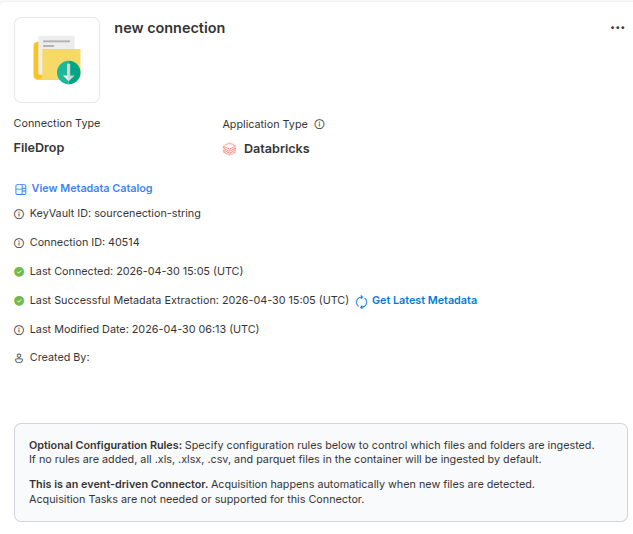
Create a connector of type FileDrop in the Empower UI under the State Database configuration. No Key Vault secret is required.
2. Register the File
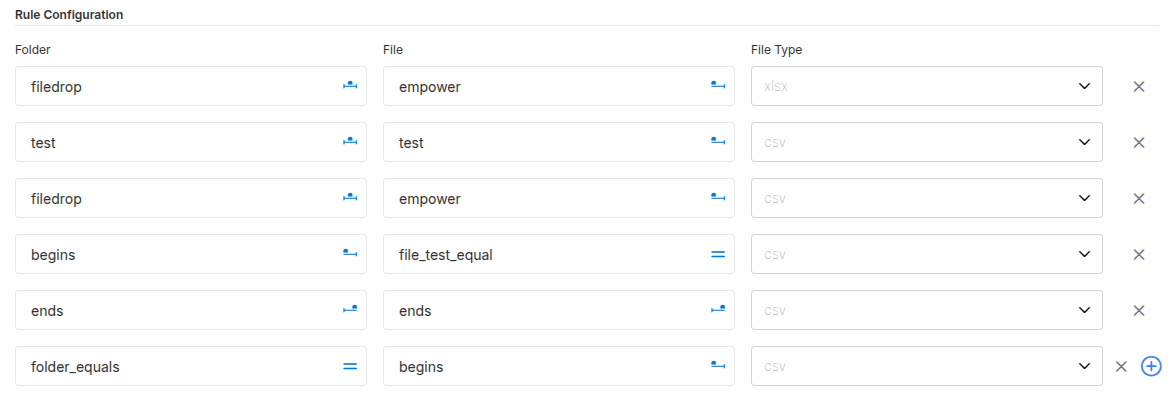
Each file that will be uploaded must be registered in Empower with two key values:
- DROPBOX Folder — The folder in ADLS storage where the file will be uploaded. Must be prepended with
/, for example:/ExampleFile. - Object Name — How the file will be referred to in Empower; typically the file name in
snake_case.
Files can be incrementally loaded using the standard watermark process.
3. Configure File Matching
Each file requires a matching rule that tells Empower how to identify and associate an uploaded file with its registered entry. This includes:
- A folder pattern to identify the DROPBOX folder.
- A file name pattern to match the uploaded file name. Wildcards and character sets are supported for flexible matching.
File matching rules can be managed through the Empower UI.
4. Enable Delta Lake Ingestion
To ingest the uploaded file into the delta lake, delta ingestion must be enabled for the registered object, and a corresponding ingestion step command must be configured. Empower does not require an explicit extraction step — extraction is triggered automatically on file upload.
5. Upload the File
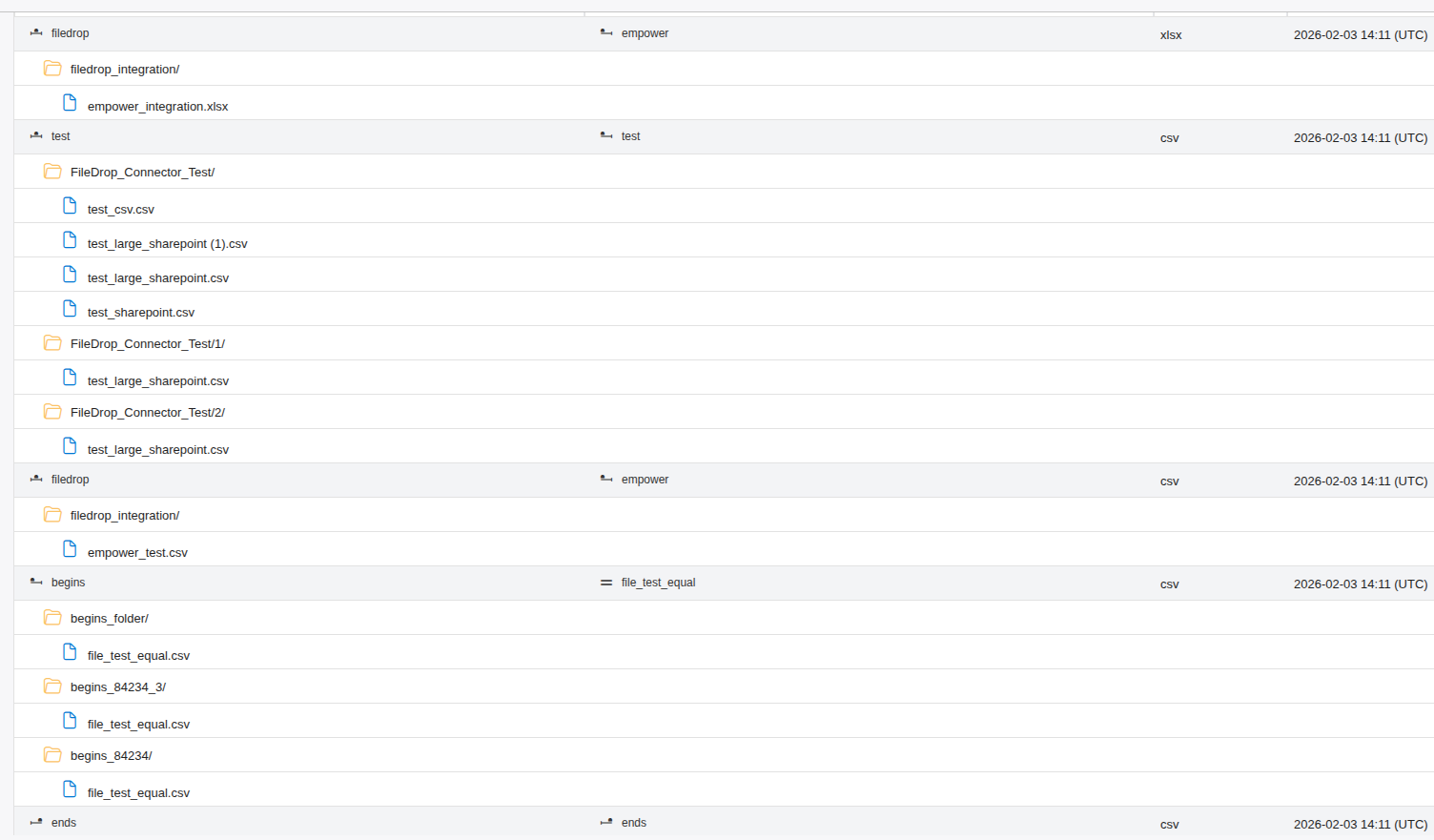
Upload the file to the configured DROPBOX folder in ADLS. Empower automatically detects the new file via a storage event trigger and begins processing.
Only a single file should be uploaded at a given time. Uploading multiple files simultaneously may cause state database conflicts and result in extraction failures.
6. Preprocessing (Optional)
Some source files arrive with formatting issues that prevent clean extraction — for example, extra header rows, inconsistent delimiters, merged cells in Excel, or unexpected encodings. The optional preprocessing step runs a Databricks notebook to clean or transform the file before it is copied to the RAW layer.
Enabling Preprocessing
Preprocessing is enabled per object by setting two values on the registered file record:
- Preprocessing Enabled — Set to
1to activate the preprocessing step. - Preprocessing Notebook Path — The full path to the Databricks notebook that will be executed for preprocessing.
These values can be configured either when the file is first registered, or updated afterward to take effect from the next run onward.
How Preprocessing Works
- When a file is uploaded, Empower checks whether preprocessing is enabled for the matched object.
- If enabled, the configured Databricks notebook is executed to clean or transform the file.
- The notebook reads the original uploaded file and writes the cleaned output to a dedicated staging area in ADLS.
- The pipeline then uses the staged file for the downstream copy and ingestion steps.
- After successful ingestion, the original uploaded file is deleted automatically.
Why a separate staging area? The event trigger monitors the DROPBOX folder for new files. Writing the preprocessed file back to DROPBOX would re-trigger the pipeline. The staging folder sits outside the trigger scope, preventing this.
Preprocessing Pipeline Flow
File uploaded
  → Matched to registered object
    → Preprocessing enabled?
        ├─ Yes → Notebook runs → Cleaned file written to staging area
        └─ No  → Original file used as-is
      → File copied to RAW layer
        → Original file deleted (if preprocessing was used)
          → Data ingested into delta lake
Preprocessing Notebook
A template notebook is provided as a starting point. Copy the template, rename it for your use case, and add your transformation logic in the designated section. The template includes all necessary pipeline parameters pre-wired and a helper function for writing the output as a single file.
Important: The preprocessing notebook must write the output as a single file, not a partitioned folder. The downstream copy step expects exactly one file at the staging path. Use the provided helper function in the template to ensure correct output behaviour.
Cleanup Behaviour
| Scenario | Uploaded file | Staged file |
|---|---|---|
| Preprocessing enabled, pipeline succeeds | Deleted automatically | Consumed by copy step |
| Preprocessing not enabled | Handled by standard extraction | N/A |
Pipelines
| Pipeline | Description |
|---|---|
| Metadata | Extracts metadata from uploaded files. |
| Extraction | Triggered automatically when a file is uploaded to the DROPBOX folder. Moves the file data to the RAW storage layer. |
| Preprocessing (Optional) | Runs a Databricks notebook to clean or transform the file before extraction. Writes output to a staging area. Enabled per object via the preprocessing flag. |
| Ingestion | Ingests the extracted file into the delta lake using the standard ingestion process. |
Troubleshooting
File Not Extracted After Upload
- Verify that the file has been correctly registered in Empower with a matching folder and file name pattern.
- Confirm that the folder and object name values are consistent across all configuration records.
- Ensure only one file was uploaded at a time — concurrent uploads may cause state database conflicts.
Multiple Files Uploaded Simultaneously
Only a single file should be uploaded at a time. Uploading multiple files simultaneously may result in processing failures. Upload files one at a time and wait for each run to complete before uploading the next.
Preprocessing Not Executing
- Confirm that preprocessing is enabled (
1) on the correct registered object. - Verify that the preprocessing notebook path is set to the full path of the notebook in the Databricks workspace.
- Ensure the notebook exists at the specified path and the Databricks environment is accessible.
Preprocessing Completes but Copy Step Fails
- Ensure the preprocessing notebook writes a single output file, not a partitioned folder. Use the helper function from the provided template.
- Confirm the notebook has write access to the staging area in ADLS.
Delta Lake Ingestion Not Happening
- Confirm that delta ingestion is enabled for the registered object.
- Verify that the ingestion step command is correctly configured for the delta phase.
Updated 2 months ago